Users
Administrators create one dashboard account per person. The account's cctrace user ID is what ties the data a client sends to that person.
Roles
| Role | Sees and does |
|---|---|
admin |
Every user's sessions, the Management tab on /users, the /admin page, project deletion |
user |
Their own sessions; the aggregates every signed-in user shares |
What each role can read is detailed in Privacy.
Add a user
-
Open Users (
/users) and select the Management tab. Only administrators see it.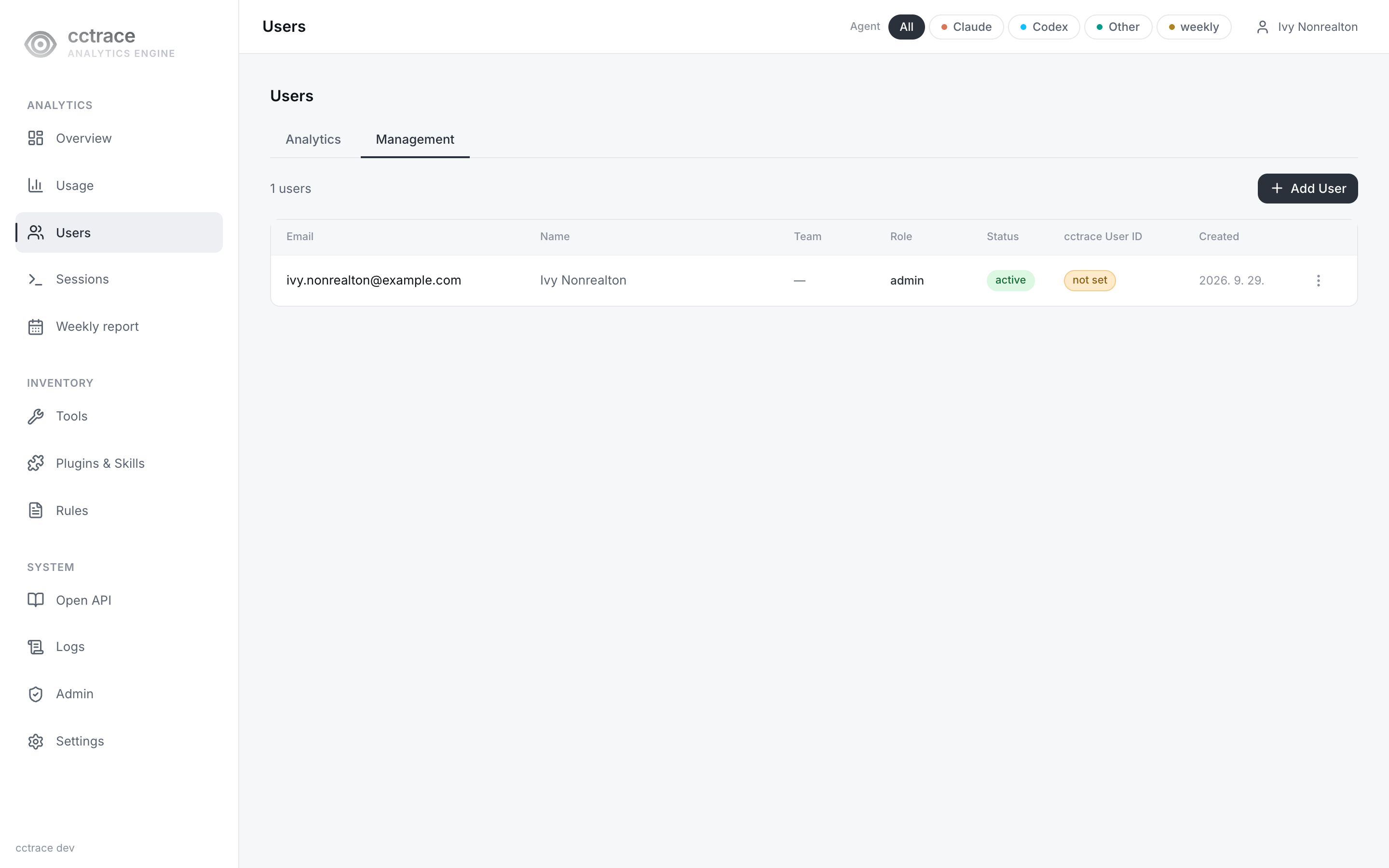
-
Select Add User and fill in every field. The server rejects the request if any is empty.
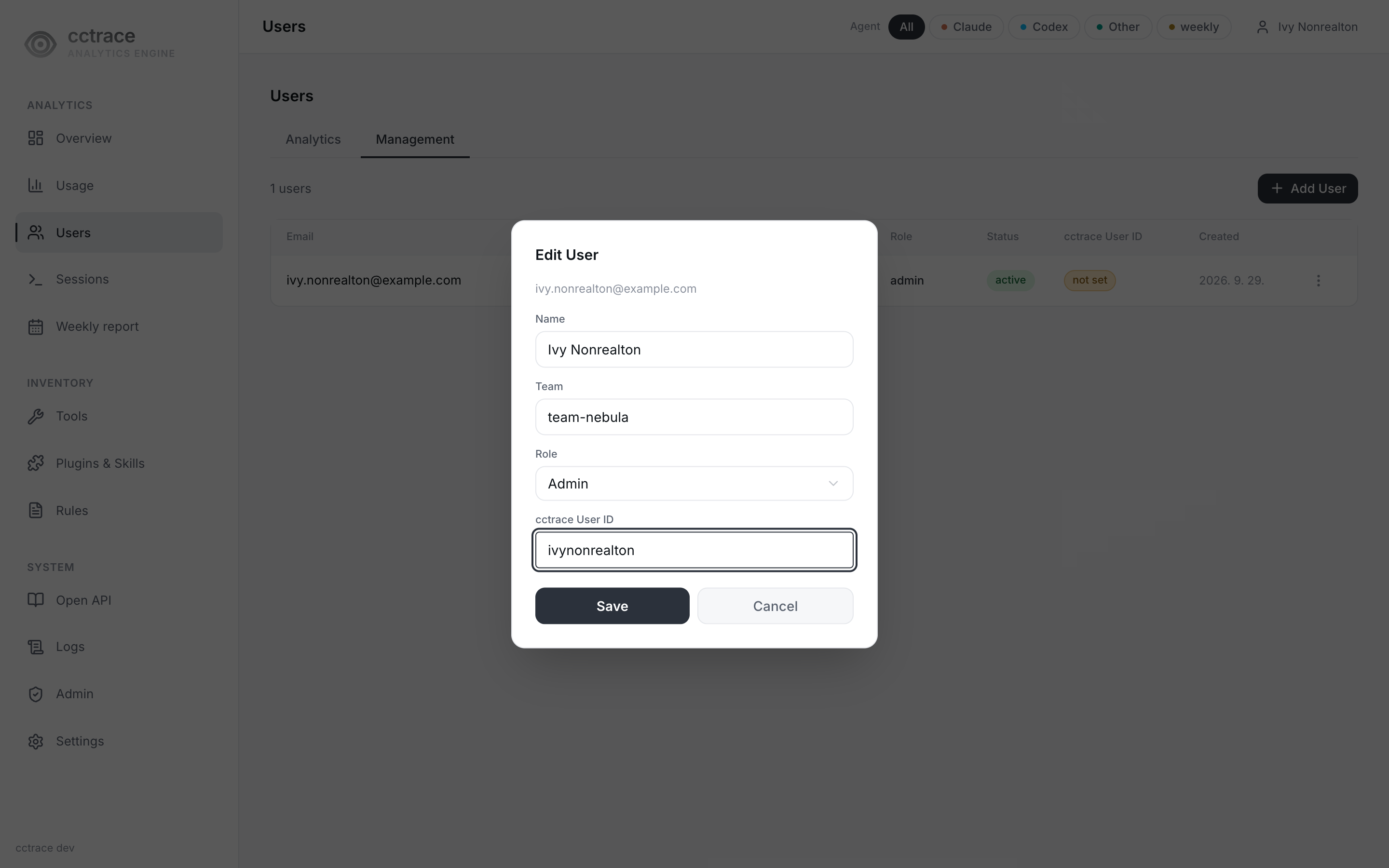
Field Value Email The person's sign-in address, for example alice@example.comName Display name Role UserorAdminTeam Team name. cctrace initfails if the account has no team. The admin created at/setuphas no team until one is set with Edit.cctrace User ID A short identifier, for example alice. The person enters it incctrace init. The field suggests user IDs already seen in received telemetry.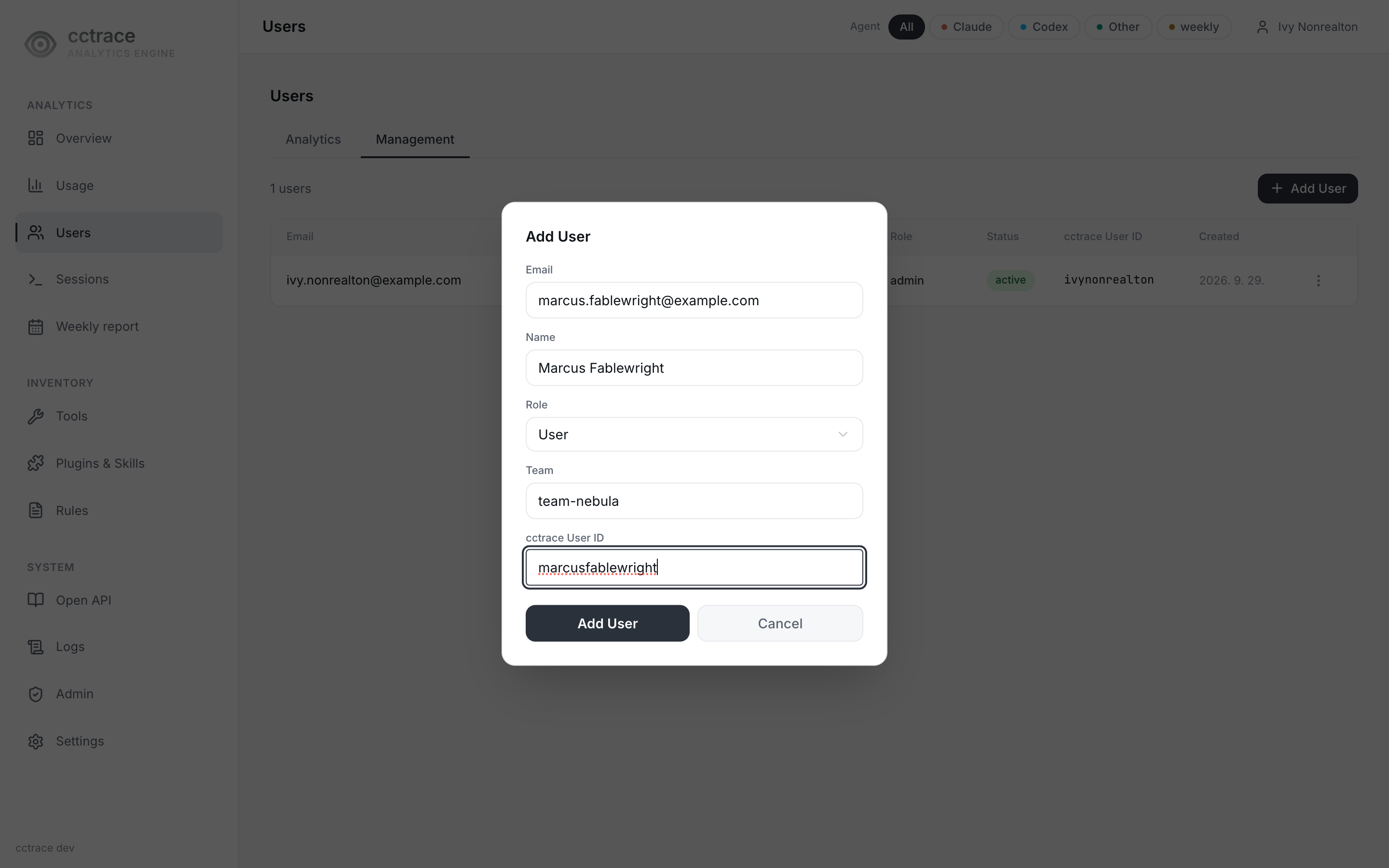
-
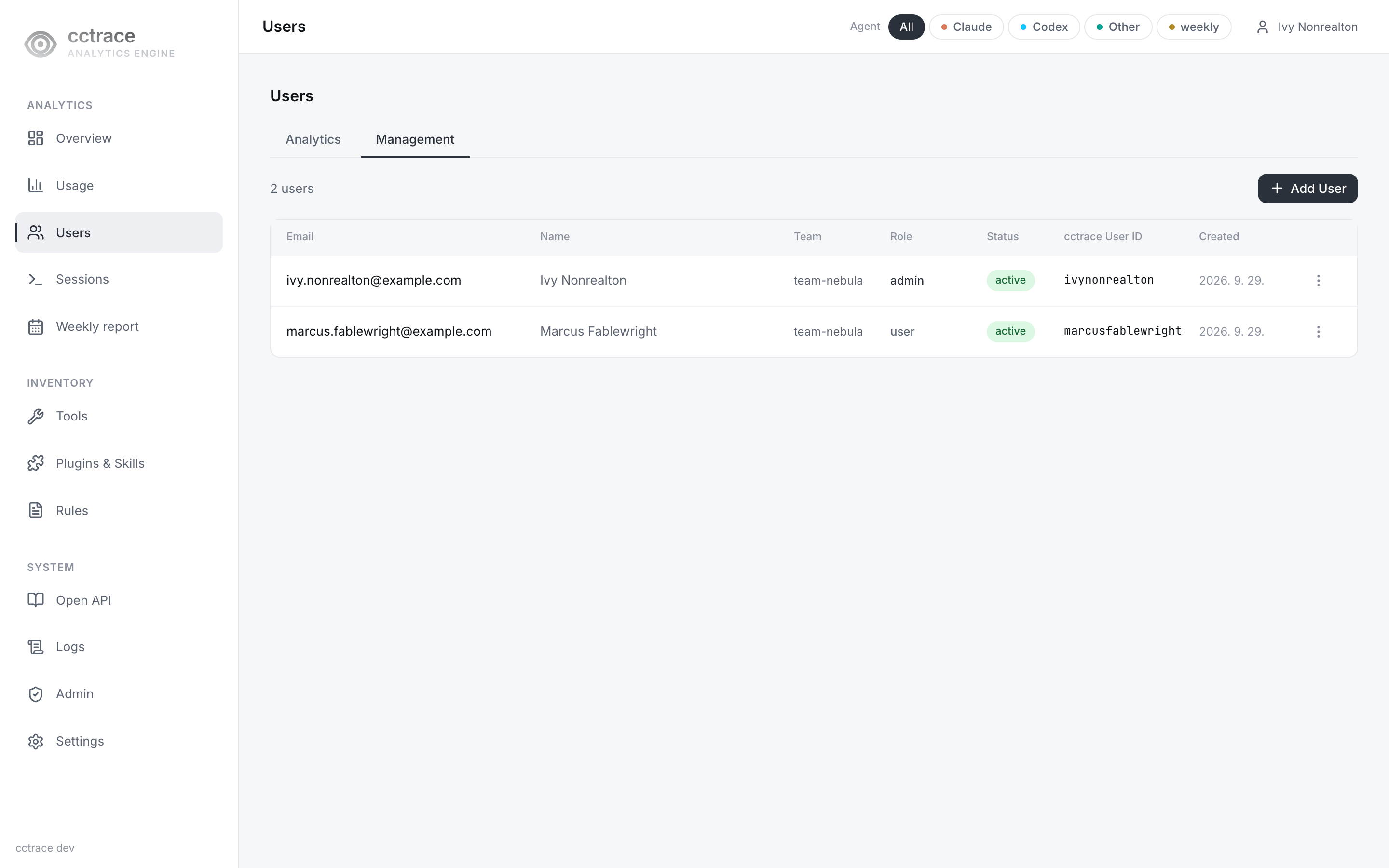
The dialog shows a Temporary Password once. Give it to the person together with the cctrace user ID.
| Error | Cause |
|---|---|
email already exists |
Another account has this email |
cctrace_user_id already assigned to another user |
Another account has this user ID |
First sign-in of a new user
- The person signs in at
/loginwith the email and the temporary password. -
Until the password is changed, the dashboard sends every page to
/settingsand the other navigation entries are disabled.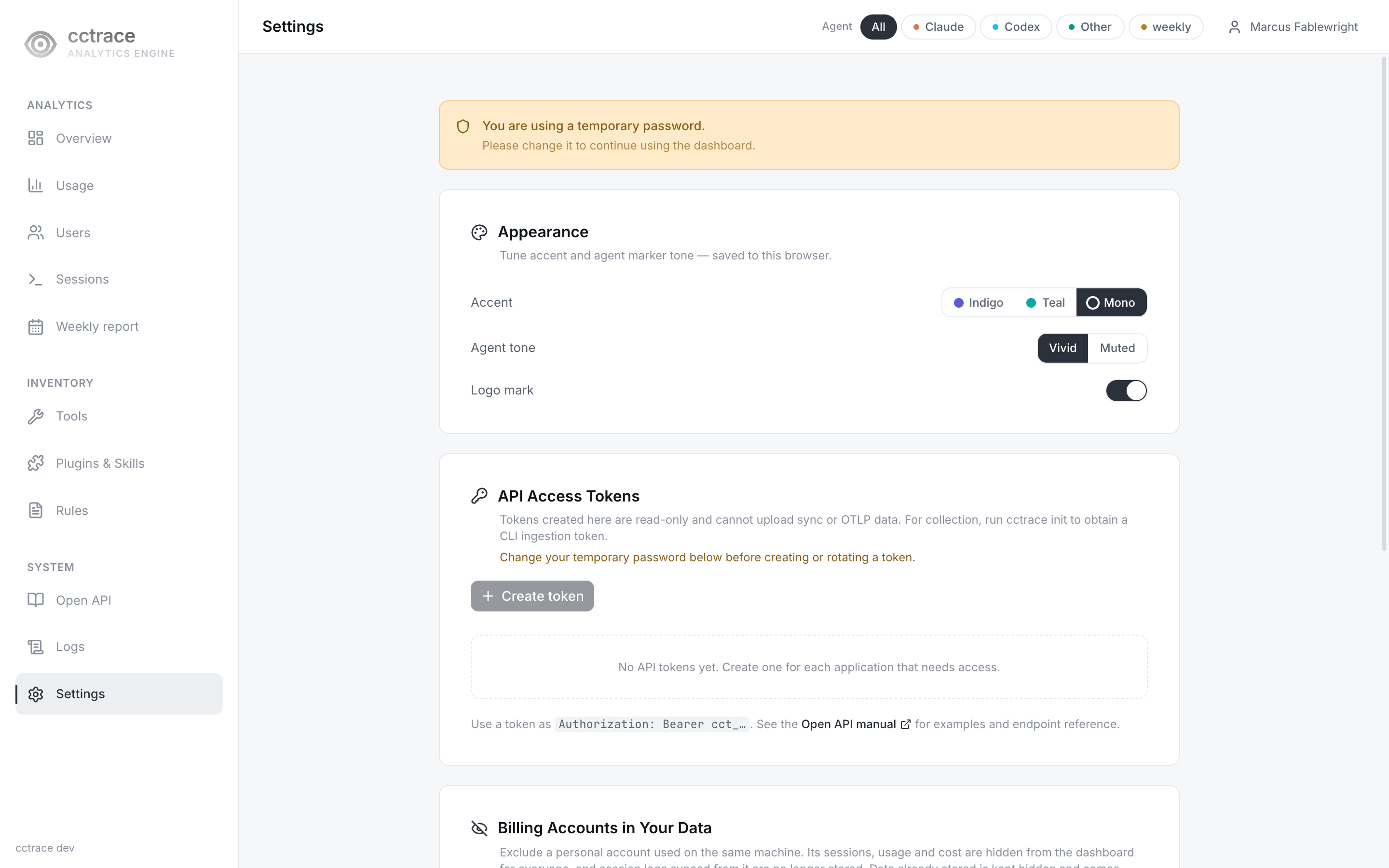
-
The person sets a new password (at least 8 characters) under Change Password.
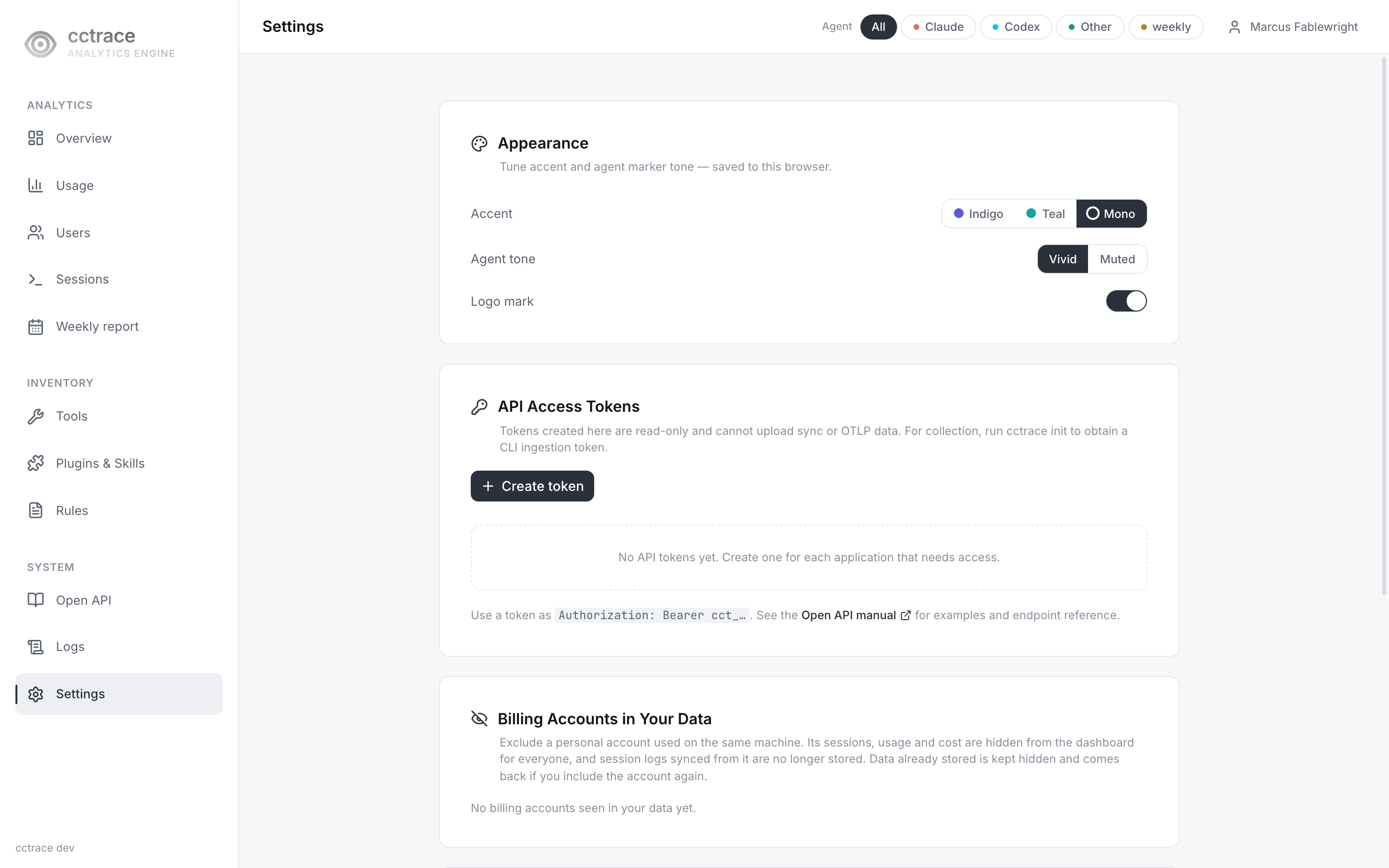
The server refuses cctrace init authentication while a temporary password is pending; init stops with please change your password on the dashboard before authenticating. After the change, continue with Connect.
How data is attributed to an account
cctrace initauthenticates with the cctrace user ID and password. The server returns the account's name, email, and team, and an upload token. The client stores them in its profile.- Every session upload carries the profile's user ID and email.
- The OTEL environment that
initwrites labels telemetry with the user ID, name, email, and team throughOTEL_RESOURCE_ATTRIBUTES(user.id=<id>,user.name=<name>,user.profile.email=<email>,user.team=<team>). When telemetry arrives with a user's upload token, the server attributes it to the account that owns the token. - The dashboard shows a
useraccount the data stored under its cctrace user ID. An account without one (the not set badge in the list) sees no session data (with the defaultCCTRACE_USERID_ACCESS_CONTROL). - Changing an account's cctrace user ID does not move data already stored under the old ID.
Manage accounts
Open the row menu on the Management tab.
| Action | Effect |
|---|---|
| Edit | Change name, team, role, or cctrace user ID. A team that is set cannot be emptied: Save is disabled with Team is required. |
| Deactivate / Activate | A deactivated account cannot sign in (account is disabled), cannot authenticate cctrace init, and its upload token is refused, so its clients stop sending data. Stored data is kept. |
| Reset Password | Issues a new temporary password, shown once. At the next sign-in the person must change it again, and cctrace init is refused until then. Collection with the existing upload token continues. |
| Revoke API Token | Shown when the account has a token. Deletes all of the account's tokens, including the upload token. The person's clients stop sending data until they run cctrace init again. |
| Clear Collected Data | Deletes the telemetry and session records stored under the account's email. This cannot be undone. |
There is no action that deletes an account; deactivate it instead.
Role and deactivation changes reach an open browser session within 15 minutes: the dashboard's access cookie lasts 15 minutes, and renewing it reads the account again.
Analytics tab
The Analytics tab of /users, visible to every signed-in user, lists users ordered by cost. The cost figures are under active development and are not documented here.